
Your headline is sharp, your profile is polished, and your inbox is still empty. That’s rarely a content problem – it’s a settings problem.
Quick answer: six LinkedIn settings decide whether recruiters can find you – Open to Work, job preferences, public profile settings, profile viewing options, the “I’m interested” button, and profile discovery off LinkedIn. All six are free, and fixing them takes about ten minutes.
Recruiters don’t browse LinkedIn the way you do. Instead, they run filtered searches inside LinkedIn Recruiter, and those six settings decide whether you appear at all. Some sit three menus deep. A few stay off until you switch them on.
Why LinkedIn settings beat a better headline
I’ve placed 250+ mid-career tech professionals, and the same pattern repeats: someone rewrites their headline for the fourth time while the switch that actually controls their visibility sits untouched. Rewriting feels like progress because it’s visible work. However, a beautifully written profile that’s excluded from the search filter is still a beautifully written profile nobody reads.
This isn’t a guess about how the other side works. SHRM’s guide to targeting passive candidates calls LinkedIn the most widely used platform for passive recruiting. So a recruiter filters by title, location, and open-to-work status, and gets a list. You’re either on that list or you aren’t. No amount of copywriting moves you onto it, because the filter runs on structured data – your stated titles, your stated locations, your status flags – and not on prose.
That’s why this is the highest-return ten minutes in your search. It’s also why almost everyone skips it. Nobody brags about changing a dropdown.
The six LinkedIn settings that decide if recruiters find you
1. Open to Work – and who can actually see it
Find it under the Me icon, then View profile, then the “Open to” button, then “Finding a new job.” You get two visibility choices: all LinkedIn members, which adds the green #OpenToWork photo frame, or recruiters only.
Here’s the part worth reading twice. LinkedIn’s own help documentation says that when you pick recruiters only, it takes steps to stop Recruiter users at your current company from seeing your career interests – but it explicitly declines to guarantee complete privacy.
So treat “recruiters only” as a serious reduction in risk, not a force field. If you’re searching while employed and a leak would cost you your job, don’t lean on this switch alone. Pair it with a quiet search, and know the warning signs that your job is already at risk before you decide how much caution you can afford.
2. Job preferences: the titles and locations you list
This is the matching engine, and most people fill it out once and never look again. LinkedIn helps your profile surface in recruiter searches based on the job types and preferred locations you specify, which means those fields aren’t preferences in any soft sense. They’re the keys you get matched on.
Two rules. First, use the titles recruiters actually type, not your company’s internal branding. “Product Manager” gets searched. “Product Ninja II” does not. Second, list every adjacent title you’d genuinely accept, not just the one you want. A Director of Product who lists only “Director of Product” filters themselves out of every Group PM and Senior PM search running that week. Add every location you’d take, including remote.
3. Public profile settings
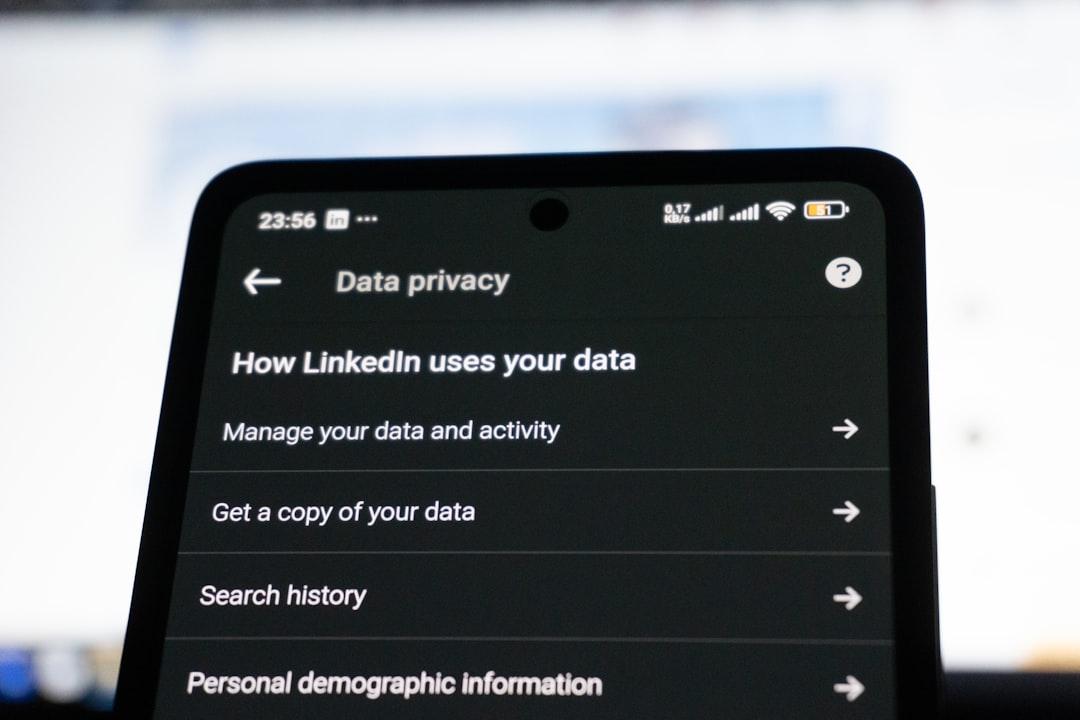
Your public profile is the stripped-down version that non-members and search engines see. On the public profile settings page, you can turn individual sections on or off for Google, Bing, and anyone browsing while logged out.
This matters because recruiters and hiring managers routinely look you up before they message you. If your public profile shows a name, a title, and nothing else, you read as thin at exactly the moment someone’s deciding whether you’re worth an email. For a sense of what they’re actually scanning for, see what hiring managers look for.
4. Profile viewing options
This one controls what people see when you view their profile. Private mode hides your name, which sounds appealing while you’re quietly researching companies.
But there’s a real cost, and LinkedIn spells it out: on a Basic free account, browsing in private mode means you can’t see who’s viewed your profile either. That data is a live signal. If three people from one company viewed your profile this week, that’s a warm lead you can act on today. Trading it away for anonymity you may not need is a bad deal.
There’s an upside to browsing publicly, too. When a hiring manager sees that you viewed their profile, that’s a soft, deniable signal of interest that costs you nothing to send.
5. The “I’m interested” button
On a company’s About and Life tabs, you can privately tell that company you’re interested in working there. Recruiters at that company can then find you based on that interest.
That’s free, targeted signaling to a specific employer, with no application required. Build a list of your target companies and click it on every one. Clicking a button supplements real outreach rather than replacing it, but it certainly beats firing applications into the black hole and hoping.
6. Profile discovery and visibility off LinkedIn
Go to the Me icon, then Settings & Privacy, then Visibility, then “Profile discovery and visibility off LinkedIn.” This setting governs whether your profile information gets shared with third-party services, partners, and developers outside LinkedIn. Notably, it doesn’t cover search engines – that’s number three’s job.
The right call depends on your situation. If you’re searching openly, leaving it on widens where your profile can surface. By contrast, if you’re running a stealth search, it’s one more place your name can travel. Either way, decide deliberately instead of leaving the default in place because you never saw the screen.
Run them in this order
Ten minutes, once:
- Open to Work, set to recruiters only if you’re employed, or all members if you’re not
- Job preferences, with real titles and every location you’d accept
- Public profile settings, with the substantive sections turned on
- The “I’m interested” button on ten target companies
- Profile viewing options, chosen on purpose
- Off-LinkedIn visibility, chosen on purpose
Then leave it alone and go do the work that actually compounds. These settings don’t get you hired. They just make sure you’re in the room where hiring happens.
Frequently asked questions
Does the Open to Work banner make you look desperate?
The green frame is a visibility trade, not a character flaw. It broadcasts your status to everyone, which raises inbound volume and lowers signal quality. Recruiters-only gets you into Recruiter search results without the billboard. If you’re employed, choose recruiters only. If you’re not, the frame costs you very little.
Can my current employer see that I’m Open to Work?
Possibly. LinkedIn tries to hide it from Recruiter users at your company, but it won’t promise complete privacy. If discovery would be genuinely catastrophic, don’t rely on the setting by itself.
How fast will recruiters start reaching out once I fix these LinkedIn settings?
That depends entirely on your title, market, and location, and anyone who quotes you a number is guessing. These settings change whether you’re in the candidate pool at all. They don’t change how often that pool gets fished.
Do I need LinkedIn Premium for any of this?
No. All six are free. Premium changes what you can see, most notably who viewed your profile while you browse privately. It doesn’t change whether recruiters can find you.
Should I turn everything on and maximize visibility?
Only if you’re searching openly. Anyone job hunting while employed is balancing two goals that pull against each other: being findable by recruiters and being invisible to their boss. Make that trade knowingly, setting by setting.
What to do next
If you want to see where your search is weakest, take the RHINO quiz. Five minutes, no email required.
Fixing your settings makes you findable, which is only half the job. Going out and finding the decision-makers yourself is the other half, so read Reverse Job Search: Find the Humans Behind the Posting next.
If you’d rather have someone look at your profile and your search and tell you exactly what to change first, book a free strategy call.